
How to Send a Fax from Mac
Send faxes directly from your Mac in minutes. No fax machine, phone line, or software installation required. Works in Safari, Chrome, or any browser on macOS.
Step-by-step
Send Your First Fax in 5 Easy Steps
Follow these simple steps to get started
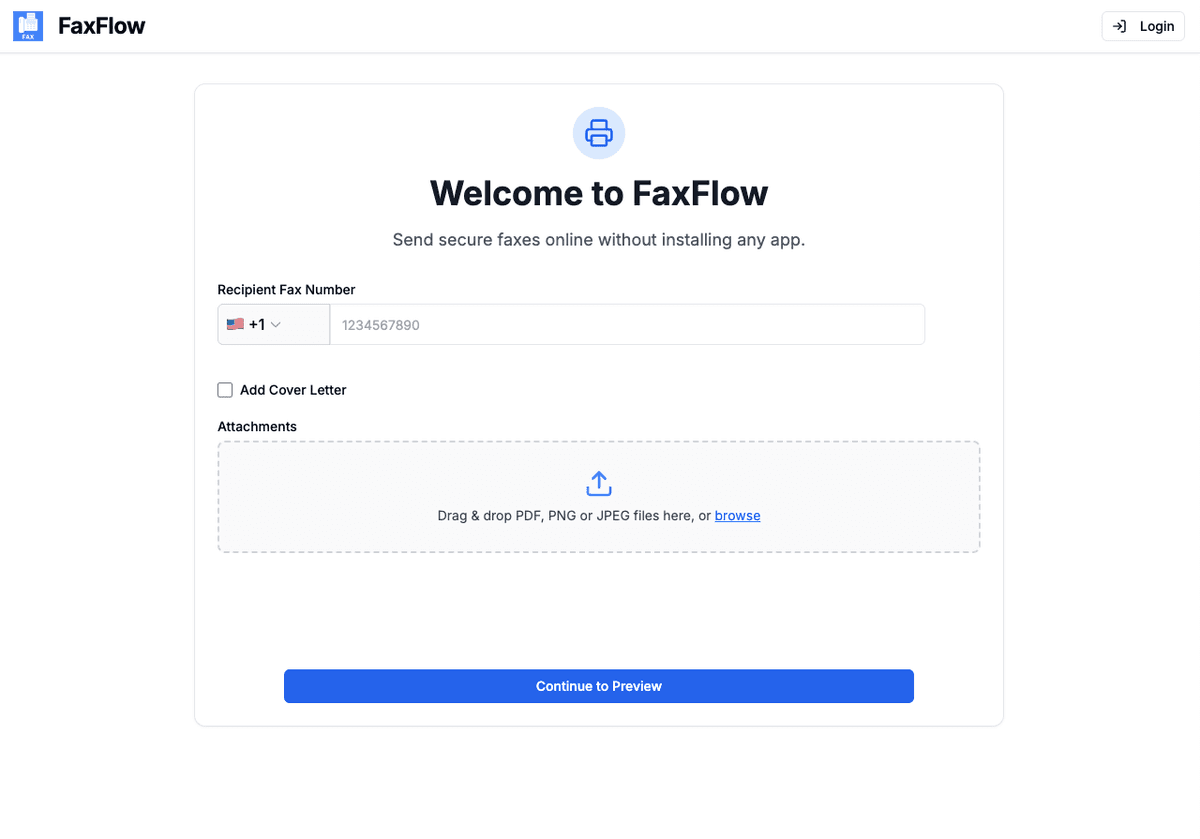
Open FaxFlow in Your Browser
Launch Safari, Chrome, or your preferred browser on your Mac and visit fax-flow.com. The web app works natively on macOS with no plugins or downloads required.
- Works in Safari, Chrome, Firefox, Edge
- No software installation needed
- Fully optimized for macOS
- Retina display support
Upload Your Document
Drag and drop files directly from Finder, or click to browse. You can use Preview to combine PDFs before uploading, or scan documents using your iPhone with AirDrop and upload them instantly.
- Drag and drop from Finder
- Supports PDF, DOC, DOCX, JPG, PNG
- Use AirDrop to scan from iPhone
- Combine files with Preview first
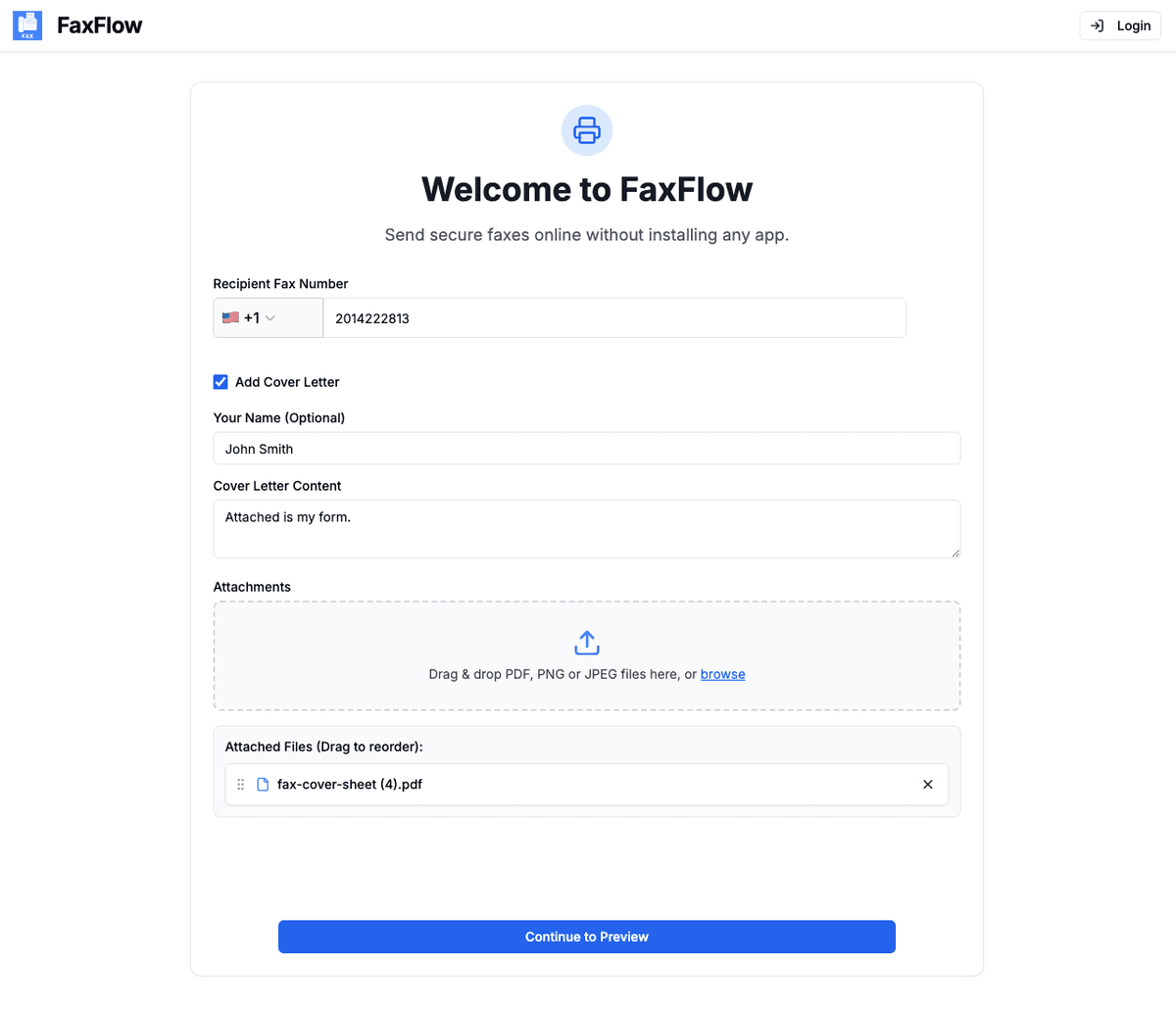
Enter Recipient Fax Number
Type in the destination fax number including the country code. Add an optional cover letter to give your fax a professional appearance.
- International fax numbers supported
- Add professional cover letter
- Preview before sending
- Save frequently used numbers
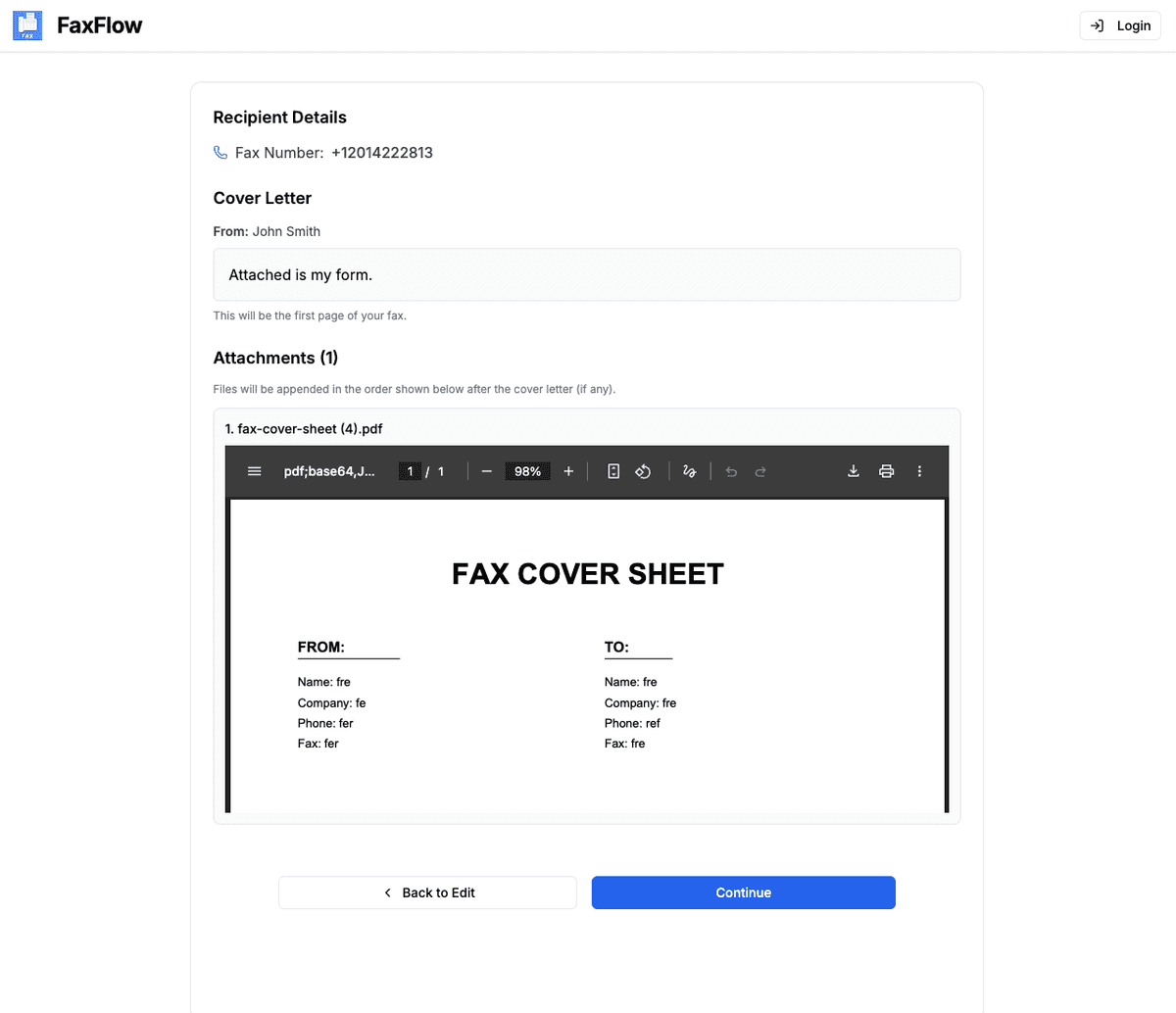
Review and Preview
See exactly how your fax will appear to the recipient. Check every page, verify the fax number, and review your cover letter before sending.
- Full page-by-page preview
- Verify recipient details
- Check cover letter formatting
- Make edits if needed
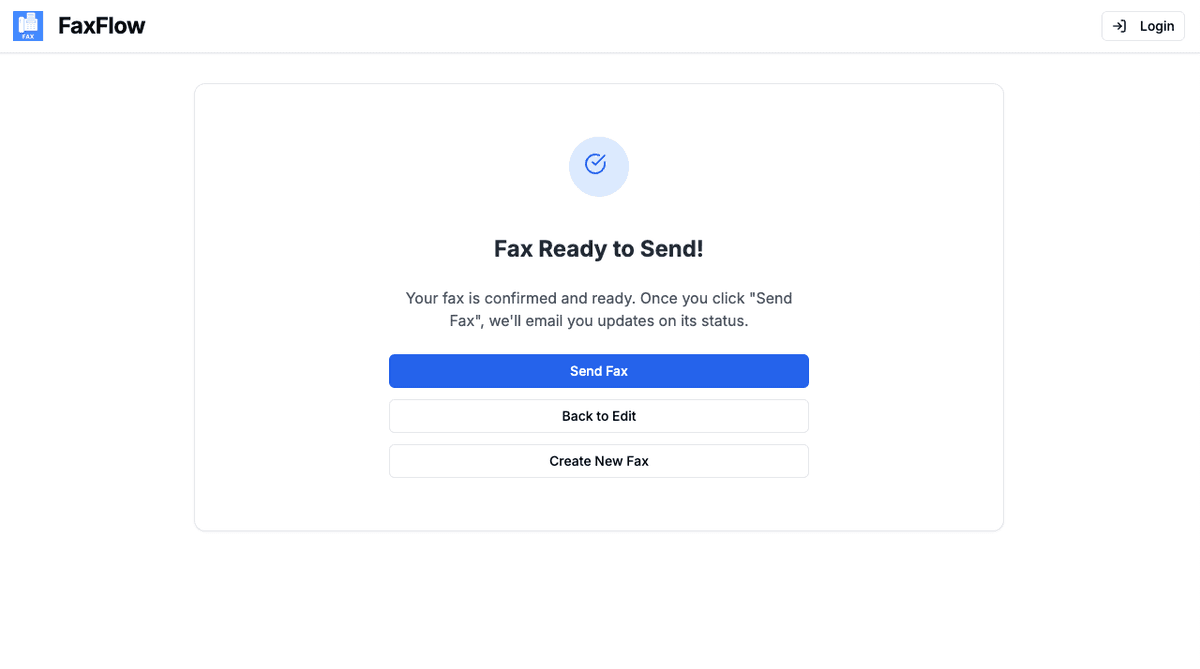
Send Your Fax
Click "Send Fax" to deliver your document. Track delivery in real time and receive an email confirmation when your fax is successfully delivered.
- Real-time delivery tracking
- Email confirmation on delivery
- Download delivery receipt
- Resend if needed
Most faxes are delivered within 3-5 minutes!
Features
Mac Faxing Features You'll Love
FaxFlow is packed with features that make faxing effortless
Native macOS Experience
FaxFlow works beautifully in Safari with full drag-and-drop support from Finder. No plugins or extensions needed.
AirDrop Integration
Scan documents with your iPhone camera and AirDrop them to your Mac, then upload to FaxFlow in seconds.
Preview Compatibility
Use macOS Preview to combine, annotate, or crop PDFs before uploading them to FaxFlow for faxing.
Secure Transmission
All faxes are encrypted with 256-bit SSL/TLS. Documents are deleted after transmission for your privacy.
Does FaxFlow work with Safari on Mac?
Yes, FaxFlow works perfectly in Safari as well as Chrome, Firefox, and any other modern browser on macOS. The web app is fully optimized for the Mac browsing experience with native drag-and-drop support.
Can I scan documents with my iPhone and fax from my Mac?
Yes. Use your iPhone camera to scan documents, then AirDrop them to your Mac. From there, simply upload the scanned files to FaxFlow and send your fax. This is a great alternative to having a flatbed scanner.
Do I need to install any software on my Mac?
No. FaxFlow is entirely web-based and runs in your browser. There is nothing to download, install, or update. Just visit fax-flow.com and start faxing immediately.
What file formats can I fax from my Mac?
FaxFlow supports PDF, DOC, DOCX, JPG, PNG, and other common file formats. You can also use macOS Preview to convert or combine files before uploading.
Is faxing from a Mac secure?
Absolutely. FaxFlow uses 256-bit SSL/TLS encryption for all transmissions. Your documents are securely transmitted and deleted after delivery. No data is stored on our servers.
FAQ
Mac Faxing FAQs
Common questions about faxing from your Mac. Need more help? Check out our complete guide or contact our support team.
Get started
Ready to Start Faxing from Your Mac?
Join thousands who have switched to online faxing. No software, no fax machine, no hassle.
No contracts • Works in any browser • Cancel anytime