
How to Fax a Document from Google Drive
Fax documents stored in Google Drive without printing them. Download your file from Drive, upload it to FaxFlow, and send your fax in minutes. Works with Google Docs, Sheets, PDFs, and more.
Step-by-step
Send Your First Fax in 5 Easy Steps
Follow these simple steps to get started
Open Your Document in Google Drive
Navigate to drive.google.com and find the document you want to fax. This works with Google Docs, Google Sheets, uploaded PDFs, images, and any other stored files.
- Works with Google Docs and Sheets
- Supports uploaded PDFs and images
- Access from any device
- Find files with Drive search
Download as PDF
For Google Docs or Sheets, go to File > Download > PDF Document. For uploaded files like PDFs or images, right-click and select Download. This saves the file to your computer ready for faxing.
- Google Docs: File > Download > PDF
- Google Sheets: File > Download > PDF
- Uploaded files: Right-click > Download
- PDF format works best for faxing
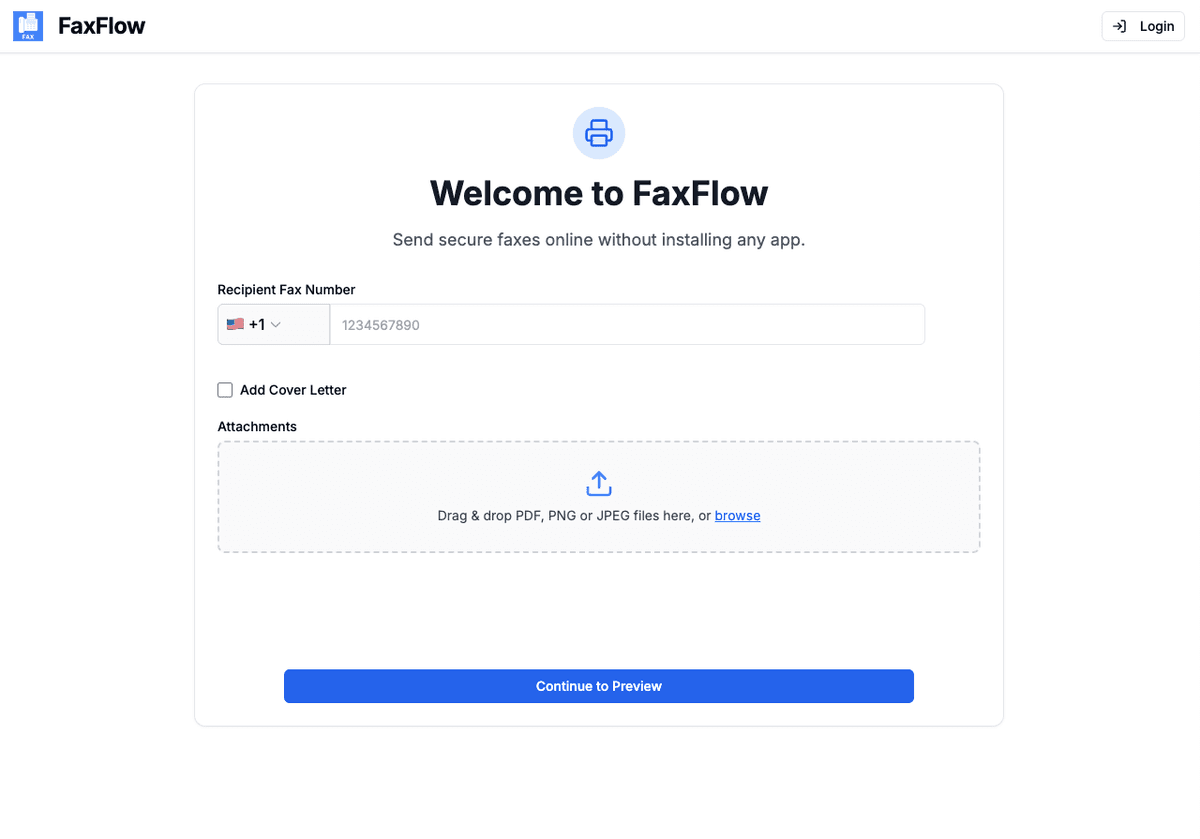
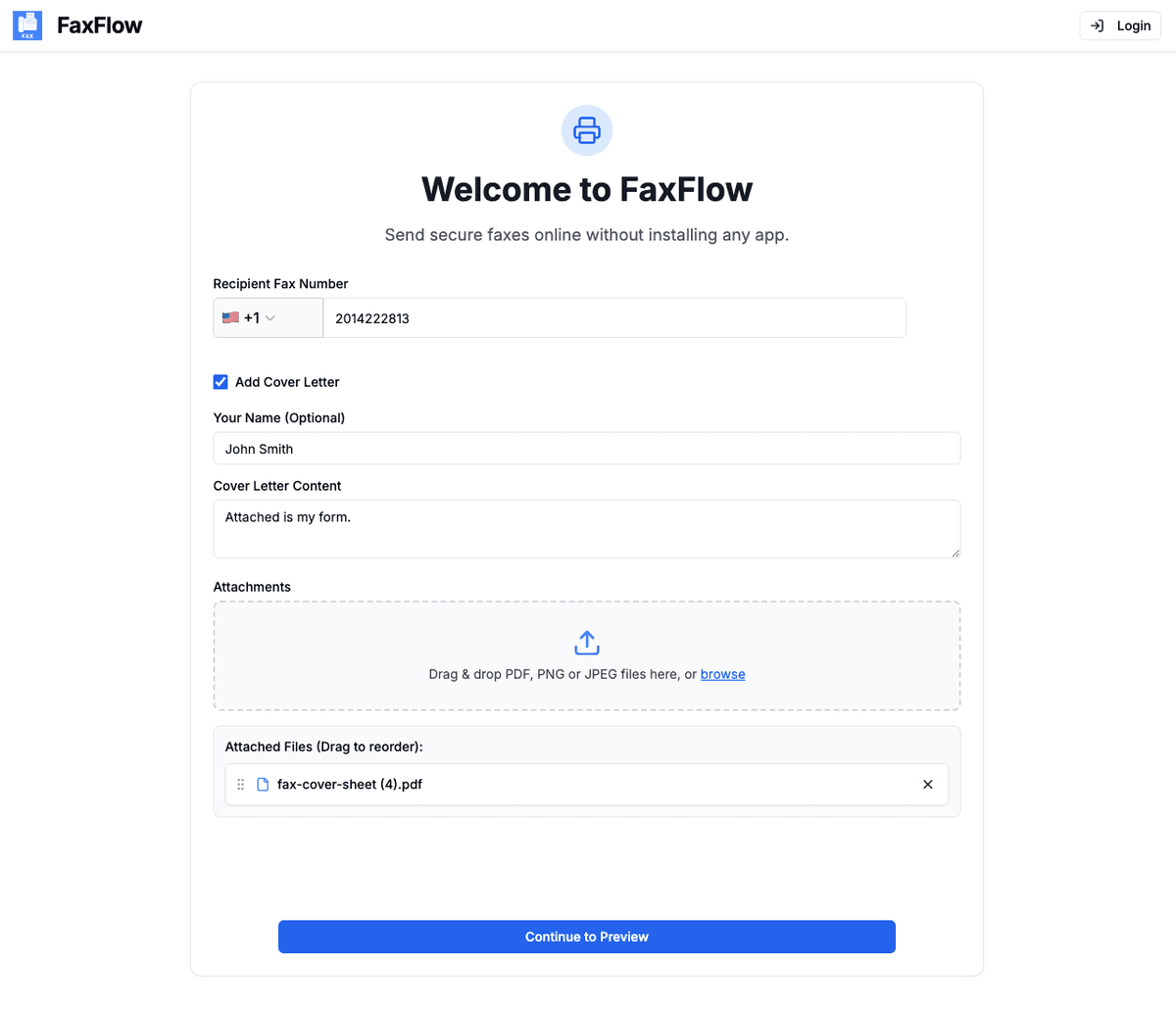
Upload to FaxFlow
Visit fax-flow.com and upload the downloaded file. Drag and drop from your downloads folder or click to browse. You can upload multiple Drive documents at once.
- Drag and drop your downloaded file
- Upload multiple documents
- Add a cover letter
- All common formats accepted
Enter Fax Number and Preview
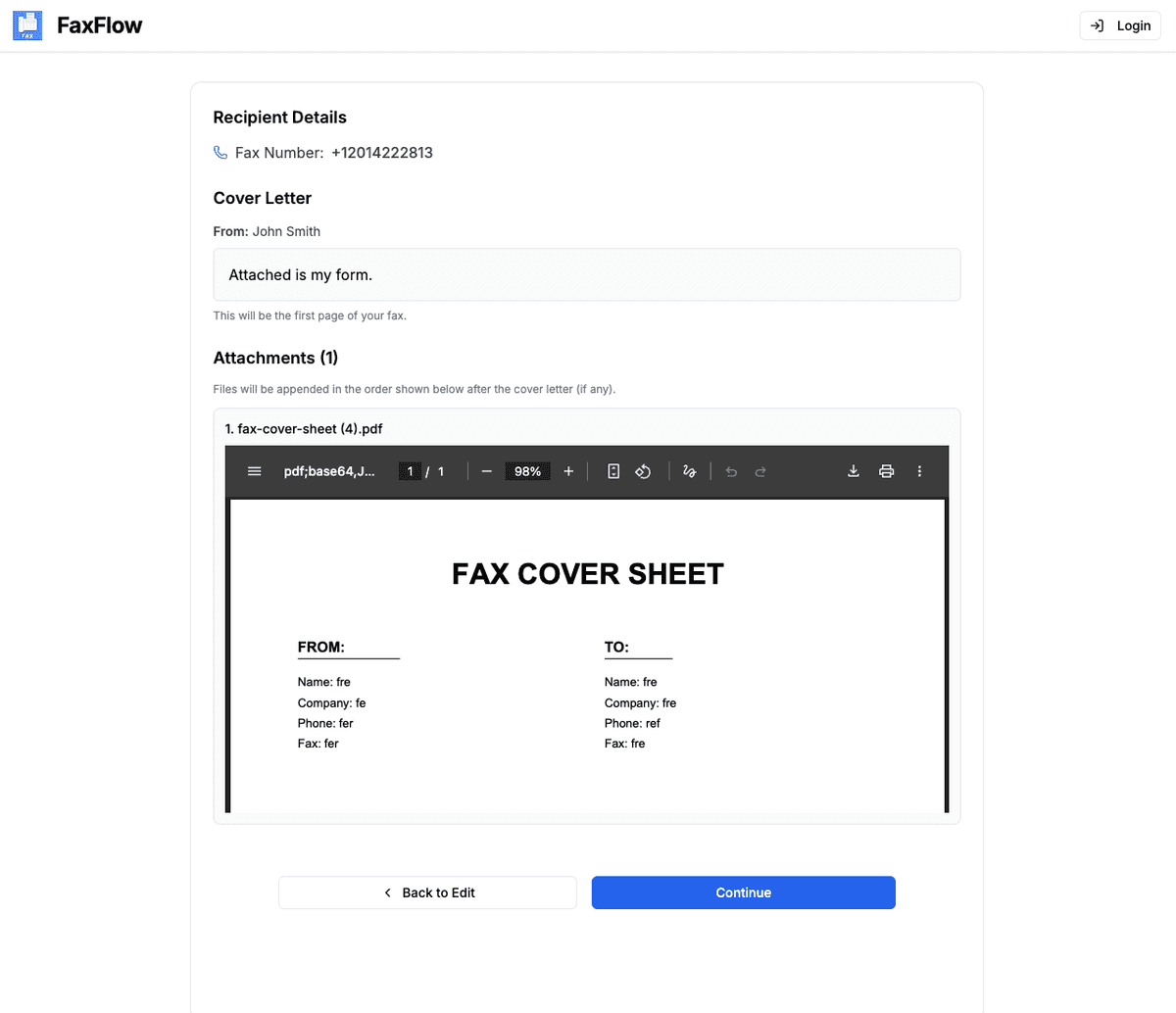
Type the recipient's fax number and preview your document. Make sure the formatting looks correct and all pages are included.
- Enter fax number with country code
- Full document preview
- Verify page count and formatting
- International faxing available
Send Your Fax
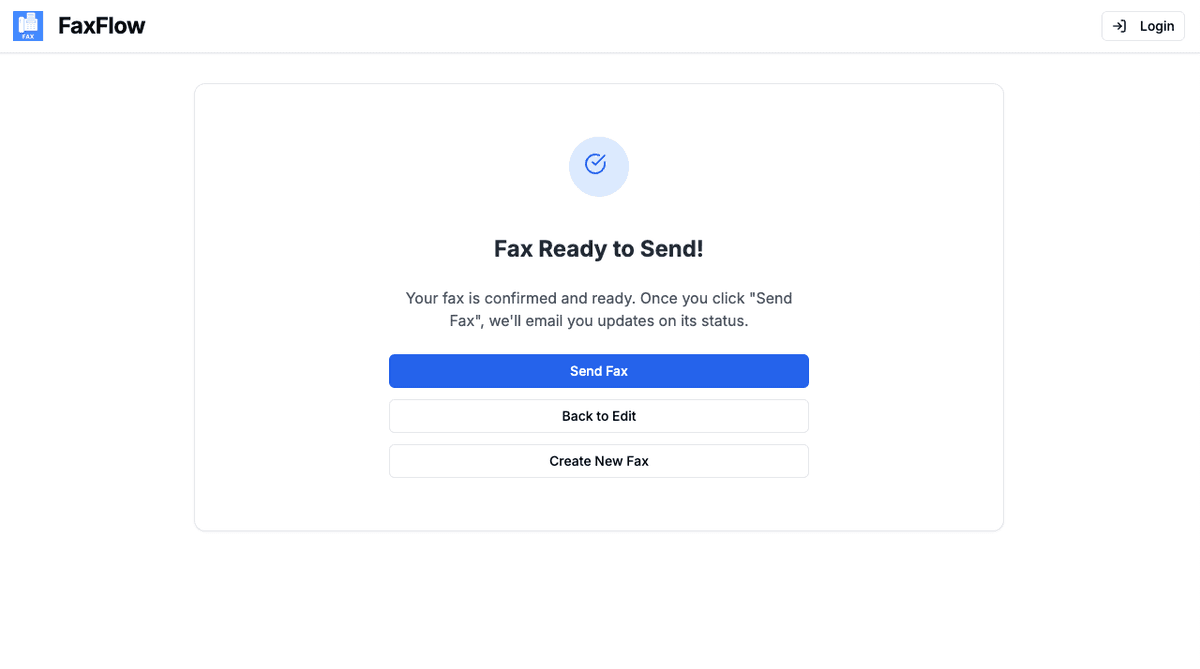
Click "Send Fax" and your Google Drive document will be faxed securely. Receive an email confirmation when delivery is complete.
- One-click sending
- Real-time delivery tracking
- Email confirmation on delivery
- Download delivery receipt
Your Google Drive document is faxed without ever printing it!
Features
Google Drive Faxing Features You'll Love
FaxFlow is packed with features that make faxing effortless
No Printing Needed
Fax documents directly from Google Drive without printing a single page. Save paper and time.
Google Docs Compatible
Download Google Docs, Sheets, and Slides as PDF and fax them instantly through FaxFlow.
Access Anywhere
Your documents are in the cloud. Access Google Drive from any device and fax from anywhere.
Secure Delivery
All faxes are protected with 256-bit SSL/TLS encryption. Documents are deleted after transmission.
Can I fax a Google Doc directly?
Google Docs cannot be faxed directly from Drive. However, you can download any Google Doc as a PDF in one click (File > Download > PDF), then upload it to FaxFlow to send as a fax. The whole process takes under two minutes.
What Google Drive file types can I fax?
You can fax any file stored in Google Drive. Google Docs, Sheets, and Slides should be downloaded as PDF first. Uploaded files like PDFs, DOC, DOCX, JPG, and PNG can be downloaded and faxed directly.
Do I need to print my Google Drive document?
No. FaxFlow is completely digital. Download your document from Google Drive and upload it to FaxFlow. There is no need to print anything at any point in the process.
Can I fax multiple Google Drive files at once?
Yes. Download the files you need from Google Drive, then upload them all to FaxFlow in a single fax. You can combine multiple documents into one fax transmission.
Is it secure to fax documents from Google Drive?
Yes. FaxFlow uses 256-bit SSL/TLS encryption for all transmissions. Your documents are securely delivered and deleted from our servers after transmission.
FAQ
Google Drive Faxing FAQs
Common questions about faxing documents from Google Drive. Need more help? Contact our support team.
Get started
Ready to Fax from Google Drive?
Stop printing documents just to fax them. Upload from Drive and send digitally in minutes.
No contracts • Works in any browser • Cancel anytime