
How to Send a Fax from Chromebook
Chromebooks cannot run traditional fax software, but FaxFlow works perfectly in Chrome browser. Send faxes from any Chromebook with zero software installation. 100% web-based, 100% compatible with ChromeOS.
Step-by-step
Send Your First Fax in 5 Easy Steps
Follow these simple steps to get started
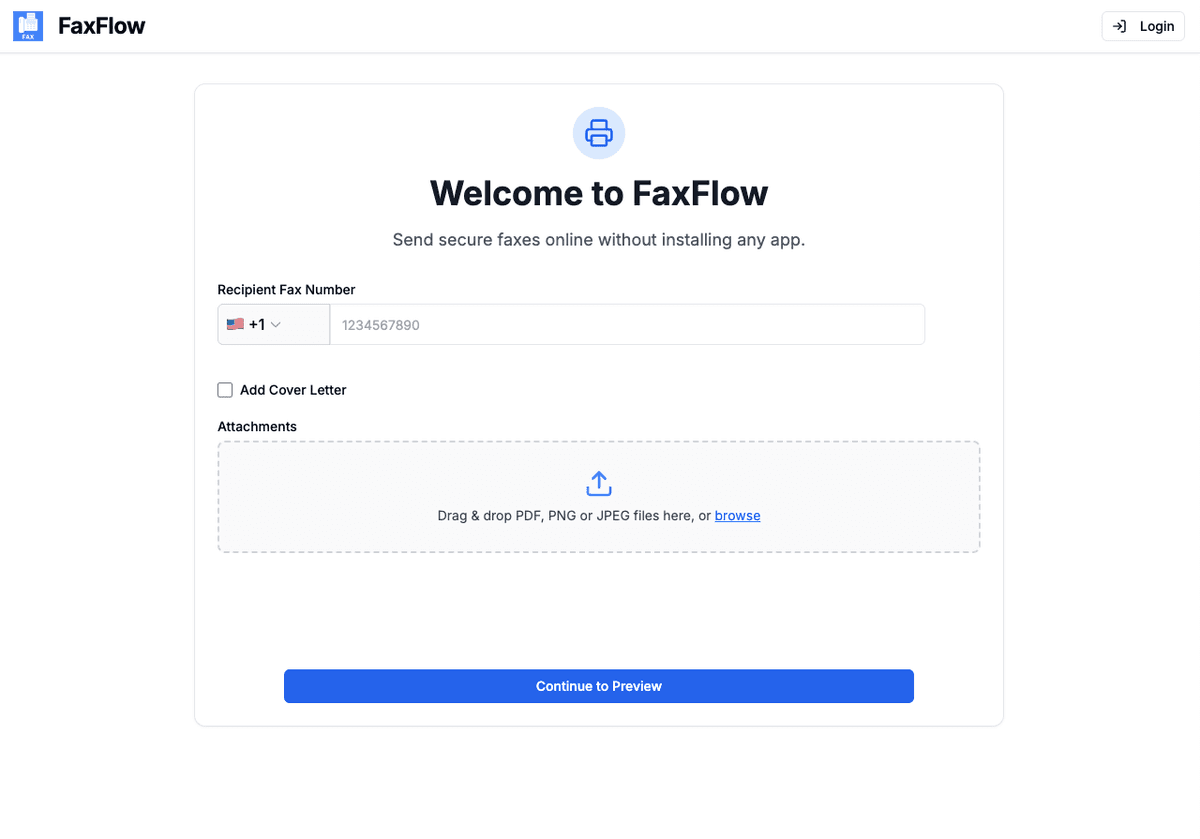
Open Chrome and Visit FaxFlow
Open the Chrome browser on your Chromebook (it is already your default browser) and go to fax-flow.com. FaxFlow loads instantly with no installation required.
- Works in Chrome browser natively
- No extensions or apps needed
- No Linux mode required
- Loads instantly on any Chromebook
Upload Your Document
Upload files from your Chromebook's local storage, Downloads folder, or directly from Google Drive. Drag and drop works perfectly in ChromeOS.
- Upload from local storage
- Access Google Drive files
- Drag and drop supported
- PDF, DOC, DOCX, JPG, PNG accepted
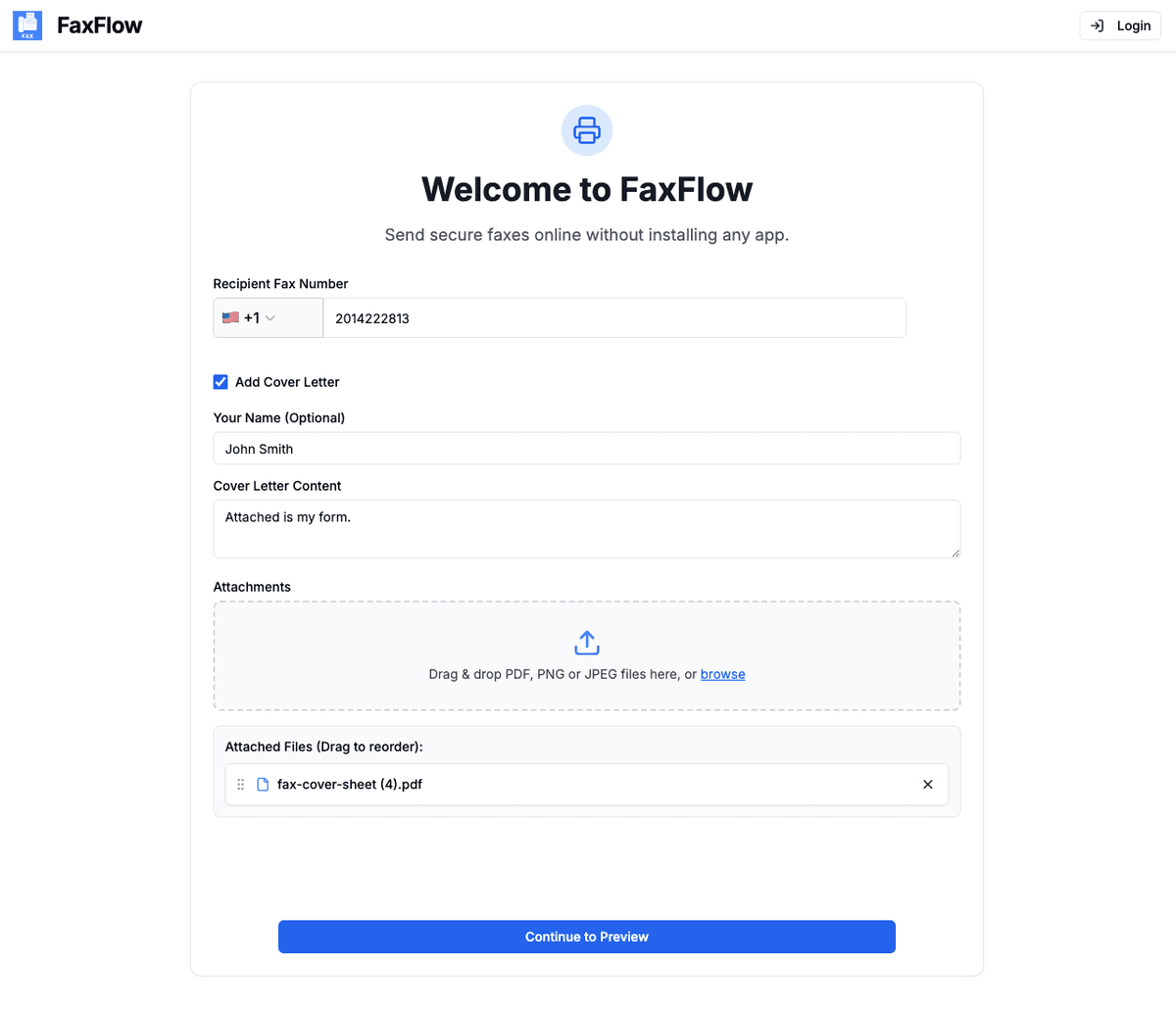
Enter the Fax Number
Type the recipient's fax number including the country code. Add a professional cover letter if needed. FaxFlow supports both domestic and international fax numbers.
- Enter fax number with country code
- Add optional cover letter
- Domestic and international
- Verify number before sending
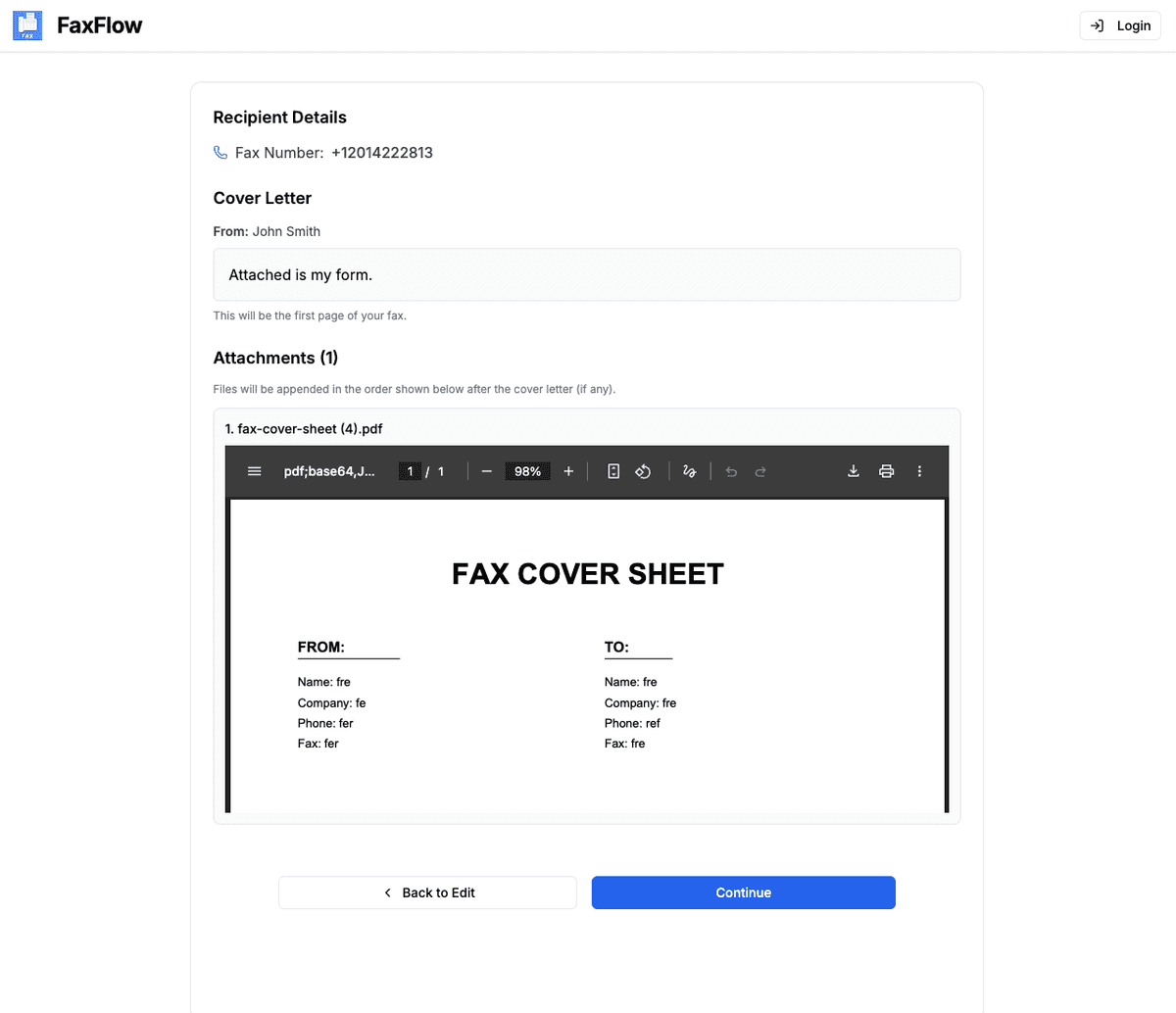
Preview Your Fax
Review your document in the preview before sending. Check every page, verify the fax number, and make sure your cover letter is formatted correctly.
- Full page-by-page preview
- Verify recipient number
- Check cover letter
- Make edits if needed
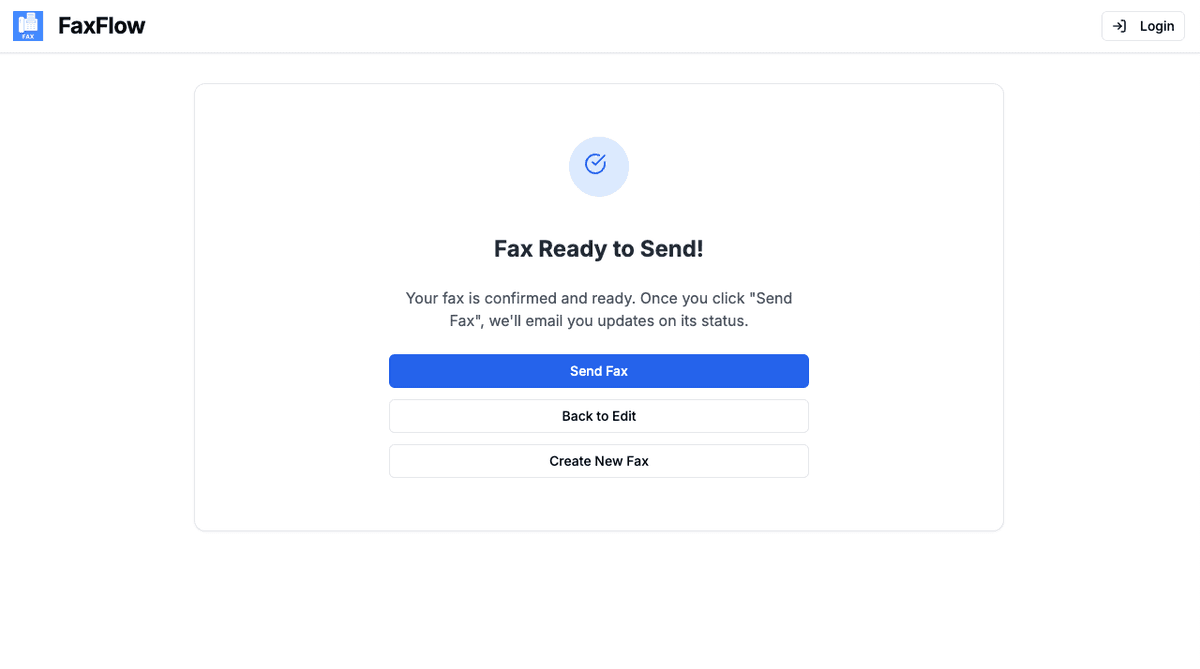
Send Your Fax
Click "Send Fax" and your document is transmitted securely. Track delivery in real time and get an email confirmation once the fax is delivered.
- One-click sending
- Real-time delivery status
- Email confirmation
- Download delivery receipt
FaxFlow is the ideal fax solution for Chromebook users!
Features
Chromebook Faxing Features You'll Love
FaxFlow is packed with features that make faxing effortless
100% Browser-Based
FaxFlow runs entirely in Chrome, making it a perfect match for Chromebooks. No desktop software, Linux mode, or Android app needed.
Google Drive Access
Access and upload documents directly from Google Drive on your Chromebook. No downloading and re-uploading required.
Google Sign-In
Sign in to FaxFlow with your Google account. Since Chromebooks are Google-based, the experience is seamless.
Works on Any Chromebook
Compatible with all Chromebook models from any manufacturer. If it runs Chrome, it runs FaxFlow.
Can I fax from a Chromebook?
Yes. FaxFlow is a web-based fax service that runs entirely in the Chrome browser. Since Chromebooks run ChromeOS with Chrome as the default browser, FaxFlow works perfectly without any software installation.
Do I need to install an Android app on my Chromebook?
No. While FaxFlow does have Android and iOS apps, the web version at fax-flow.com works perfectly in Chrome on your Chromebook. No app installation is necessary.
Can I upload files from Google Drive on my Chromebook?
Yes. You can access Google Drive files from your Chromebook's file manager and upload them directly to FaxFlow. This makes faxing cloud documents quick and easy.
Does FaxFlow work offline on Chromebook?
FaxFlow requires an internet connection to send faxes. However, you can prepare your documents offline and upload them when you are back online.
Is faxing from a Chromebook secure?
Yes. FaxFlow uses 256-bit SSL/TLS encryption for all transmissions regardless of which device you use. Your documents are securely transmitted and deleted after delivery.
FAQ
Chromebook Faxing FAQs
Common questions about faxing from your Chromebook. Need more help? Contact our support team.
Get started
Ready to Fax from Your Chromebook?
No software needed. Open Chrome, visit FaxFlow, and send your fax in minutes.
No contracts • Works in any browser • Cancel anytime